Manage Buildiq settings
Buildiq's admin page sits in Nextcloud at Settings → Administration → Buildiq. It is short on purpose. It shows the running version, the OpenRegister register Buildiq writes to, the support contact your users see, and an optional remote template registry.
Goal
By the end you will have read the running version, confirmed the register, and know what the template registry fields are for.
Prerequisites
- Your account is in the Nextcloud admin group.
- The OpenRegister app is installed and enabled.
Steps
-
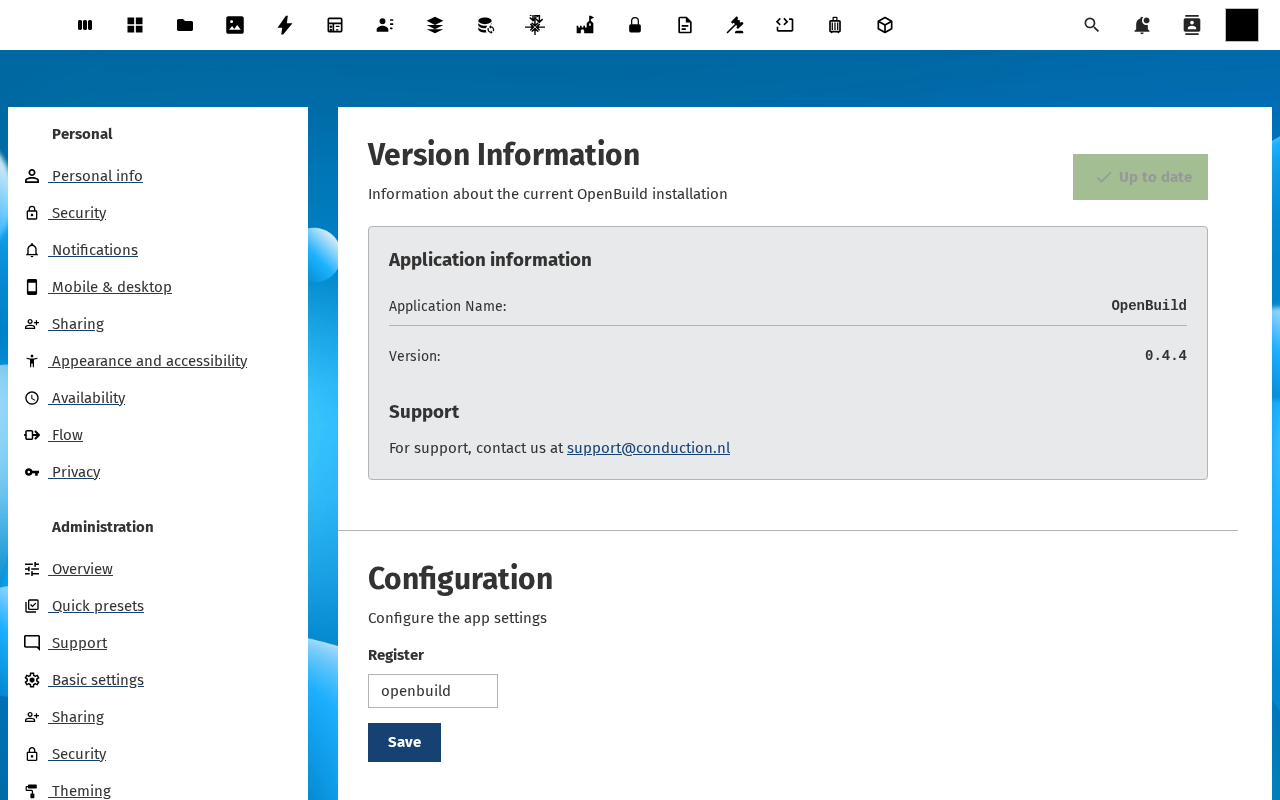
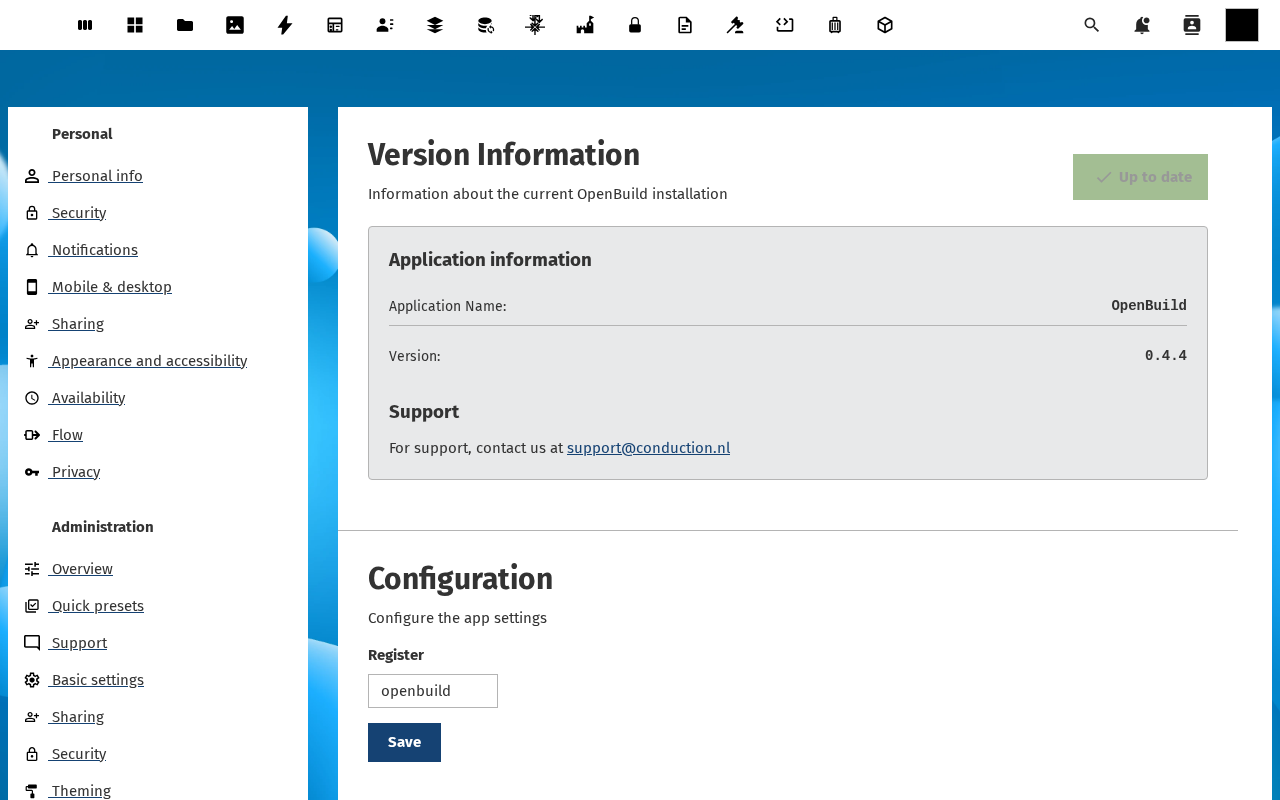
Open Settings → Administration → Buildiq. The page is headed Buildiq Settings and has three sections: Version information, Support and Configuration.
-
Read Version information. It lists the application name and the running version, for example
0.7.12. Two buttons sit above it: Update fetches a newer release, Re-import configuration re-installs the registers and schemas Buildiq ships with.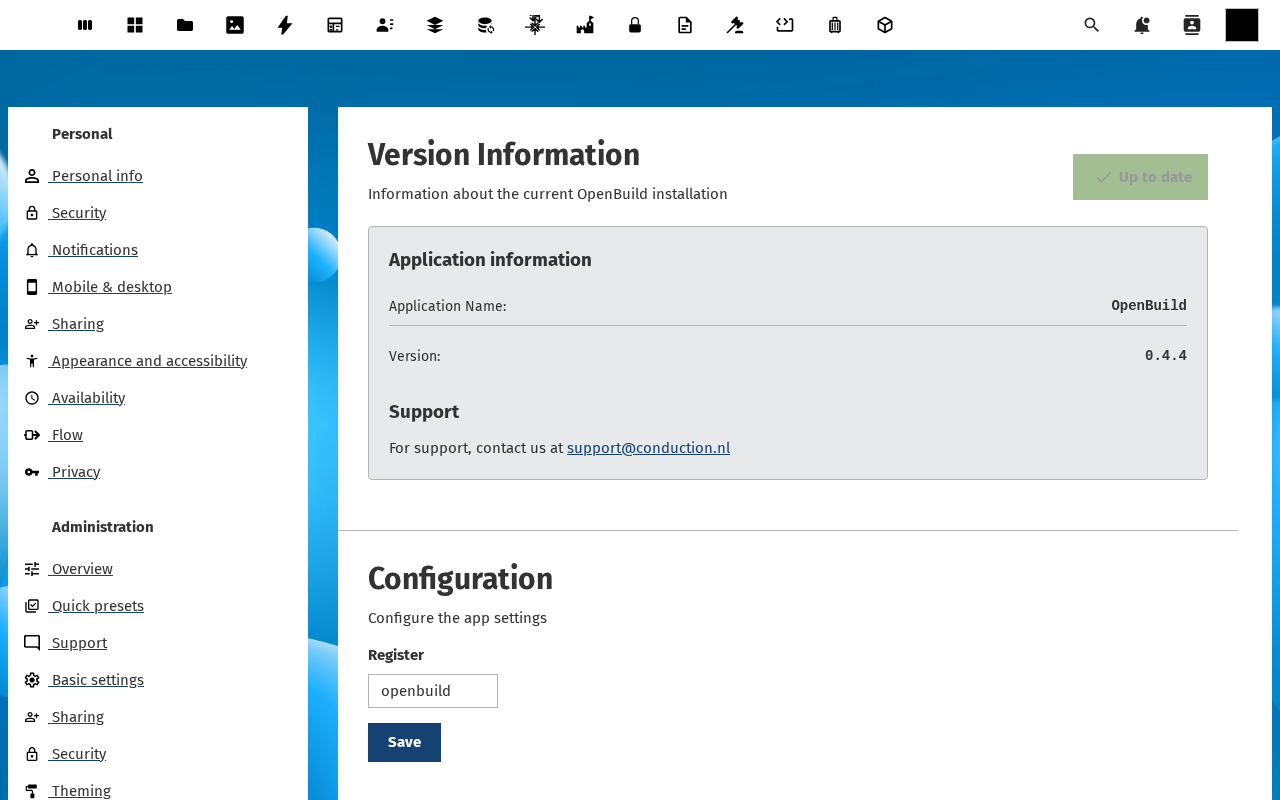
-
Read Support. It names the support address,
support@conduction.nl, andsales@conduction.nlfor a service level agreement. This is what users see when they ask for help from inside Buildiq.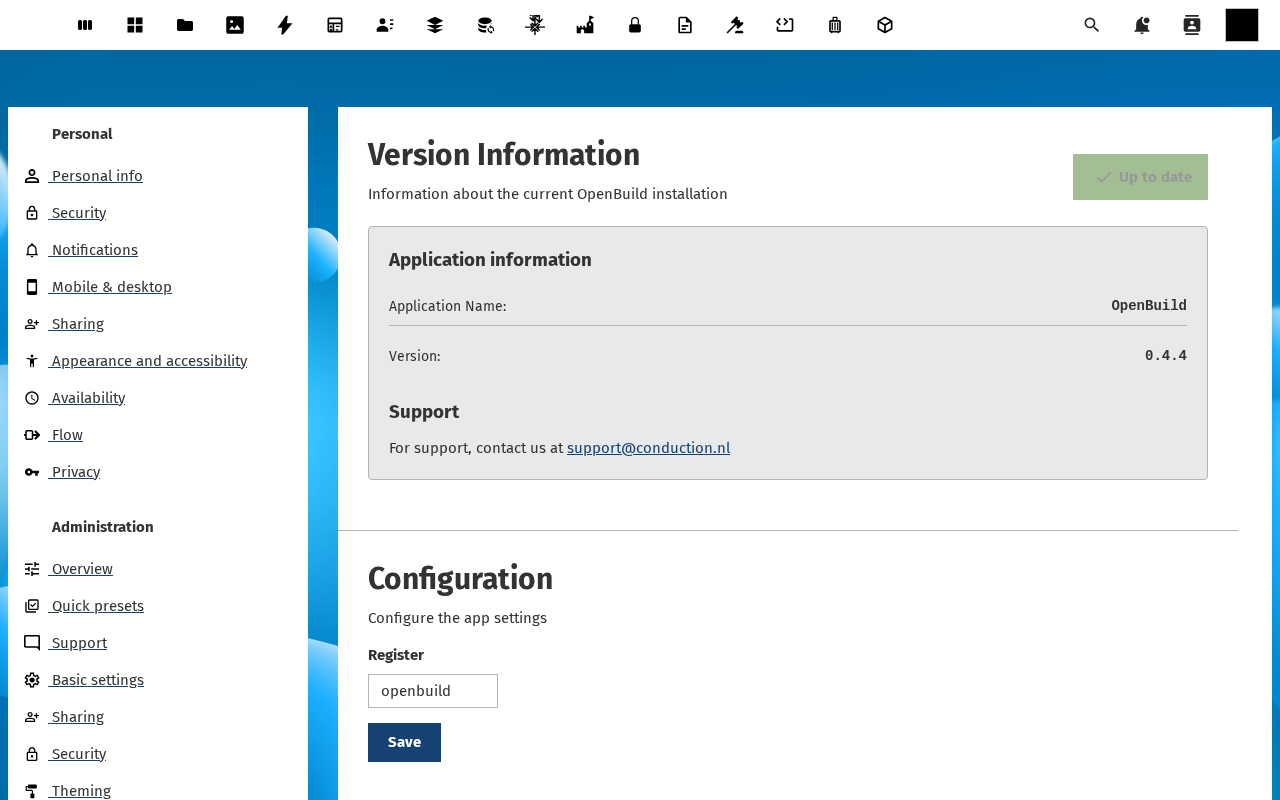
-
Scroll to Configuration. The Register field holds the OpenRegister register that stores applications, versions, templates and export jobs. On a fresh install it reads
buildiq. Leave it alone unless you run two Buildiq instances against one Nextcloud.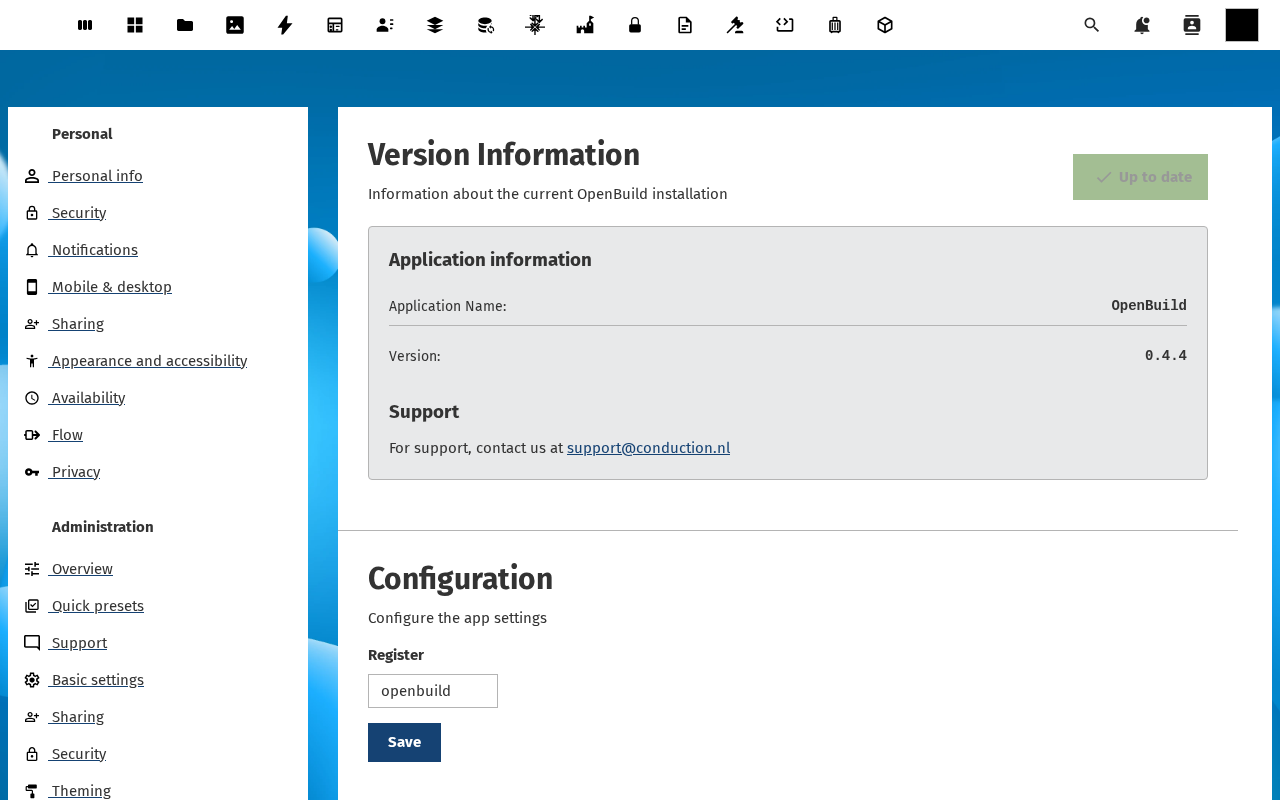
-
Under Template registry, point Buildiq at a remote store to browse templates published elsewhere. Fill in Registry URL, Registry register and Registry token, then click Save. Leave all three empty to stay on the shipped templates only.
Verification
The page is healthy when the version matches the release you installed, the Support block shows your team's address, and the Register field names a register that exists on this Nextcloud. Open Store in Buildiq afterwards: the built-in templates should still load.
Common issues
| Symptom | Fix |
|---|---|
| The Register field is empty | Buildiq never imported its configuration. Click Re-import configuration on this page. |
| Store shows no templates | The starter templates were never installed. Run Buildiq's setup wizard again and complete the Install starter templates step. |
| Save does nothing | The instance is locked. Check config.php for 'config_is_read_only' => true. |
| The remote registry returns nothing | The token is read-only and write-only in the form, so retype it. Check the URL answers over HTTPS from the server, not just from your laptop. |
Reference
- Manage who can build (RBAC): per-app roles, set on the app and not here.
- Curate the template catalogue: what builders find in the store.