Preview and run your app
The page designer previews one page at a time. To see the whole app, with its menu, its navigation and its real data, open it in the builder host. That host renders your app the way an end user sees it.
Goal
By the end you will have opened your app in the builder host, clicked through its menu, opened a record on a detail page, and confirmed the data flows end to end.
Prerequisites
- An app with at least one page in its manifest (see Design a page).
- The page's data source resolves: a register with at least one row, or a connector source that returns rows.
Steps
-
From the page designer, click Save & open preview. Buildiq saves first, then opens the app on the version you were editing, as
/apps/buildiq/builder/{slug}?_version=development. From the app's detail page, Open app does the same without the version parameter.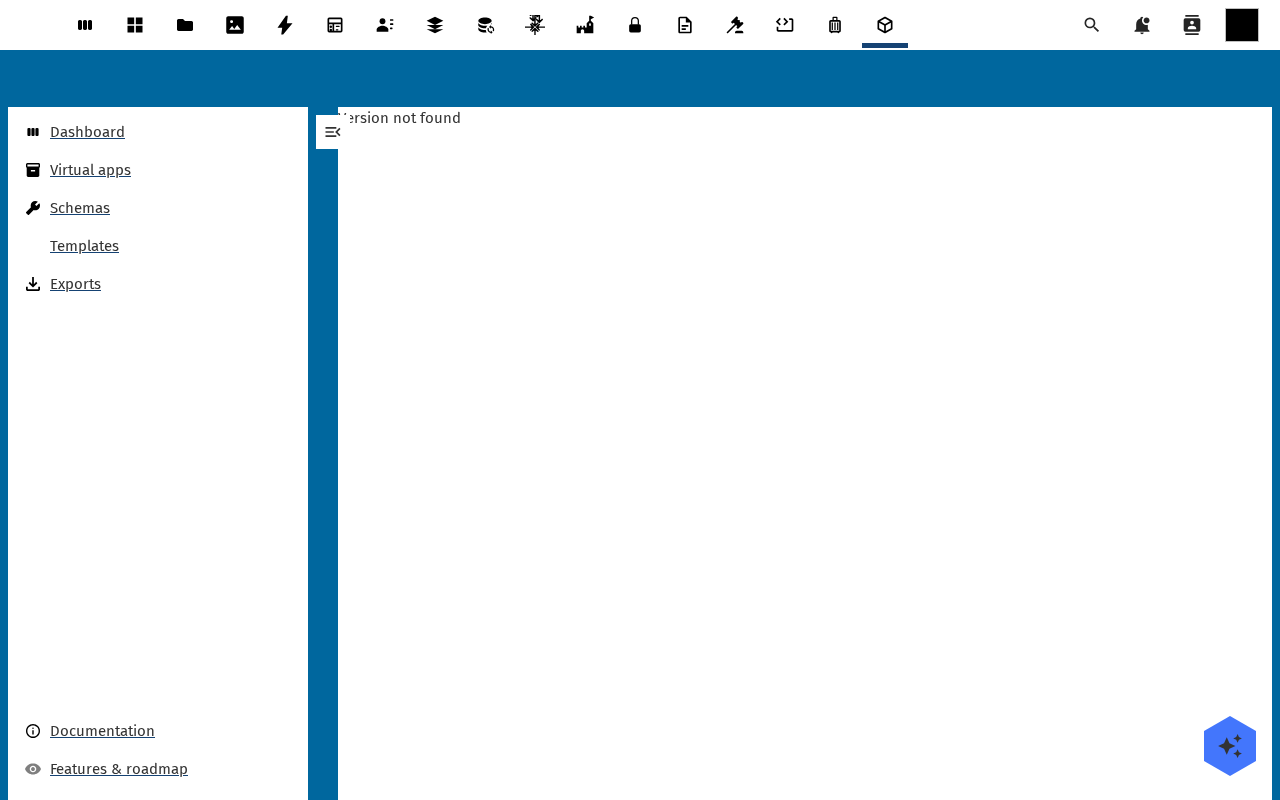
-
Mind which version you are looking at. The plain URL always serves the production version. Add
?_version=developmentto see the development one, which is where the designers and the AI write. A version you may not read answers with "Version not found". -
The left navigation lists the menu entries you configured in Design a page, with Back to apps above them. Click each entry in turn. Every page should load without an error banner.
-
On an index page, click a row to open its detail page. The detail page shows a Data widget with the record's properties and a Related widget with linked records. Edit with Buildiq jumps straight back to the designer for that page.
-
On a form page, fill in the fields and click Submit. The record lands in the register behind the page and shows up when the index page reloads.
-
Spot a bug? Click Back to apps at the top of the left navigation, open the app, fix the page, and hit Save & open preview again. The cycle is short on purpose: the host reads the manifest on every load.
Verification
The app runs correctly when every menu entry resolves to a page with no error banner, the index lists rows, the detail page shows the record, and a submitted form record appears on the index after a reload.
Common issues
| Symptom | Fix |
|---|---|
| "Version not found" | The version slug in ?_version= does not exist, or you are not an owner or editor of the app. Drop the parameter to fall back to production. |
| The index sits on its loading spinner | The register or schema behind the page is empty or unreachable. Open the register from the app's Register card and check it holds rows. |
| A menu entry lands on an empty page | The entry points at a route no page declares. Open the Menu panel in the page designer, fix the route name, and save. |
| Your edits are not in the running app | Open app serves production, and the designer writes to the version you opened it on. Open the app with ?_version=development, or promote the version first. |
| A form save reports a missing required field | The schema marks a property required that the form does not expose. Add the field to the form page, or relax the flag on the schema. |
Reference
- Compare and roll back a version, how development and production relate.
- Export your app, once the app runs the way you want.