Design a page
Pages are the screens of your app: a list, a detail view, a form, a dashboard. The page designer composes them from typed page descriptors plus the schema you designed in the previous step. It renders the result beside you while you type.
Goal
By the end you will have added a page to your app, picked its type, attached a schema, put it on the menu, and saved.
Prerequisites
- An app with at least one schema, see Design a schema.
- A clear idea of what the page is for: all records, one record, a form to add one, or a summary.
Steps
-
Open the page designer at
/apps/buildiq/builder/your-slug/pages, or reach it from your app's detail page. The designer gives you Pages and Menu on the left, and the editor for the selected page in the middle. Validation and Live preview sit on the right. Workflows, Theme, Documents and Scheduled tasks sit below. Undo, Redo, Blocks, AI copilot, Save pages and Save & open preview run along the top.
-
Click + Add page in the Pages panel. An inline row appears. Pick the page type: index, detail, dashboard, logs, settings, chat, files, form, custom, map, roadmap, search or wiki. Type a Title and a Slug, then click Confirm. The new row edits in place: title, page id, route such as
/tasksor/tasks/:id, and an optional group that the entry is visible to.
-
Select the page to open its editor. An index page asks for the Data source, OpenRegister or OpenConnector. Then come the Register, the Schema, an optional Card component, the Columns to show, the row Actions and the Sidebar switch. A form page asks what Submit does: save to a register, or hand off to a custom handler. Then come the register, the schema, the method, the mode, the submit label, the fields and any steps.
-
In the Menu panel, click + Add menu entry. Fill in the id, the label, the icon and the route name. The route name has to match the page id you just gave. Pick the section, main or settings. Leave the second select on its default unless the entry belongs under user settings. Use ⤵ to nest an entry under the one above it, and the drag handle to reorder.
-
Click Save pages. Buildiq writes the manifest onto the app's version and confirms with "Pages saved." Save & open preview does the same, then opens the running app on the version it just saved, for example
/apps/buildiq/builder/your-slug?_version=production.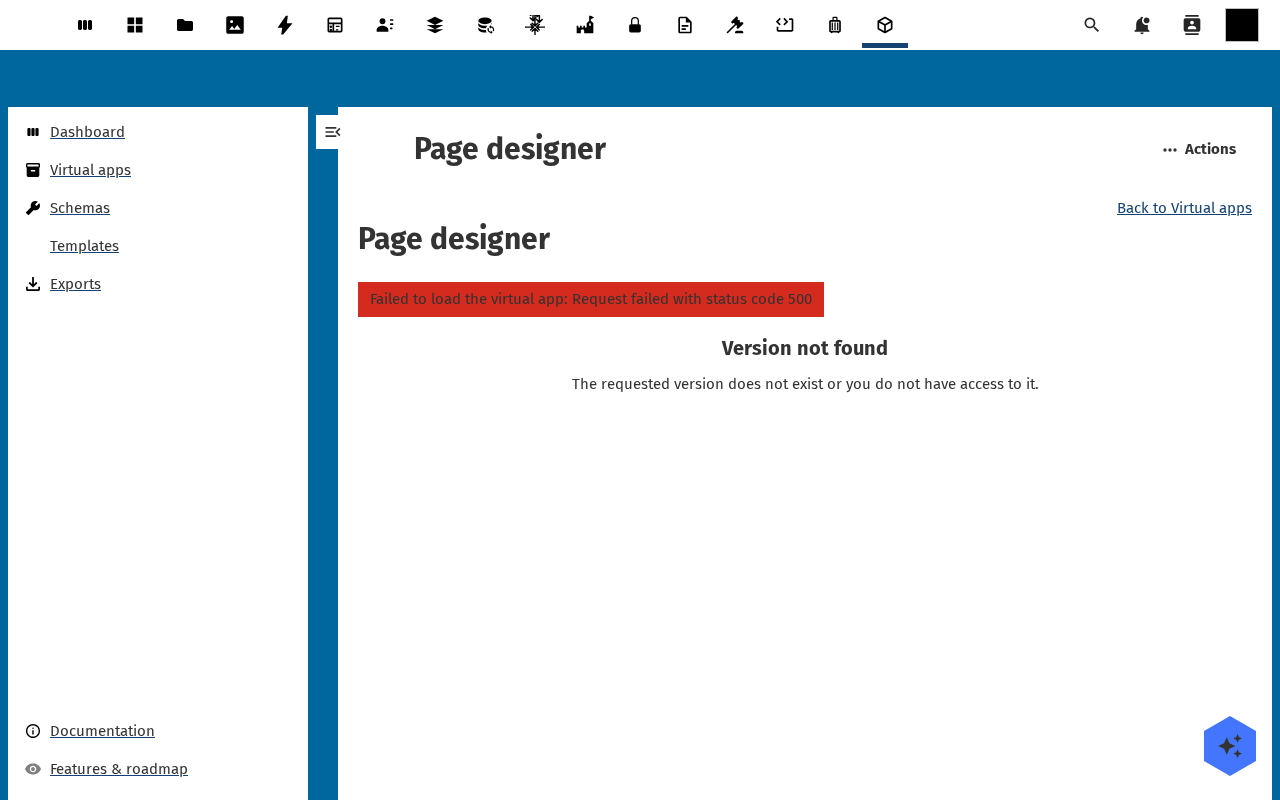
Verification
The page is good when it shows under Pages and Validation reports no errors. The live preview renders it, and the menu entry opens it in the running app.
Common issues
| Symptom | Fix |
|---|---|
| "More than one page uses the route: /" | Two pages claim the same route. Give one of them its own path, for example /tasks. |
| The page is not on the menu | The menu entry's route name does not match any page id. Copy the id from the Pages panel. |
| The preview lists nothing | The schema has no records yet. Add a few through the form page you just designed, or through the row actions on the index page. |
| You opened + Add page and want out | The row's Cancel button is currently unreachable behind the editor panel. Reload the page instead, nothing is saved until you click Save pages. |
Reference
- Design a schema for the data the page reads.
- Connect external data to list rows from an external source.
- Preview the running app to see the page in the live shell.