Design a schema
A schema is the data shape behind everything Buildiq stores: the columns in a list, the fields on a form, the body of an API response. Buildiq uses standard OpenRegister schemas, so anything you build here is reachable through OpenRegister's API the moment you save.
Goal
By the end you will have added a field to a schema in your app. You will have picked its type, marked it required if it has to be filled in, and saved.
Prerequisites
- An app you can edit. Clone one from a template if you have none yet, see Create an application from a template.
- A rough idea of the data shape, so you know what each record has to track.
Steps
-
Open Apps, click your app, and open the Schemas panel on its detail page. You can also go straight to
/apps/buildiq/builder/your-slug/schemas.
-
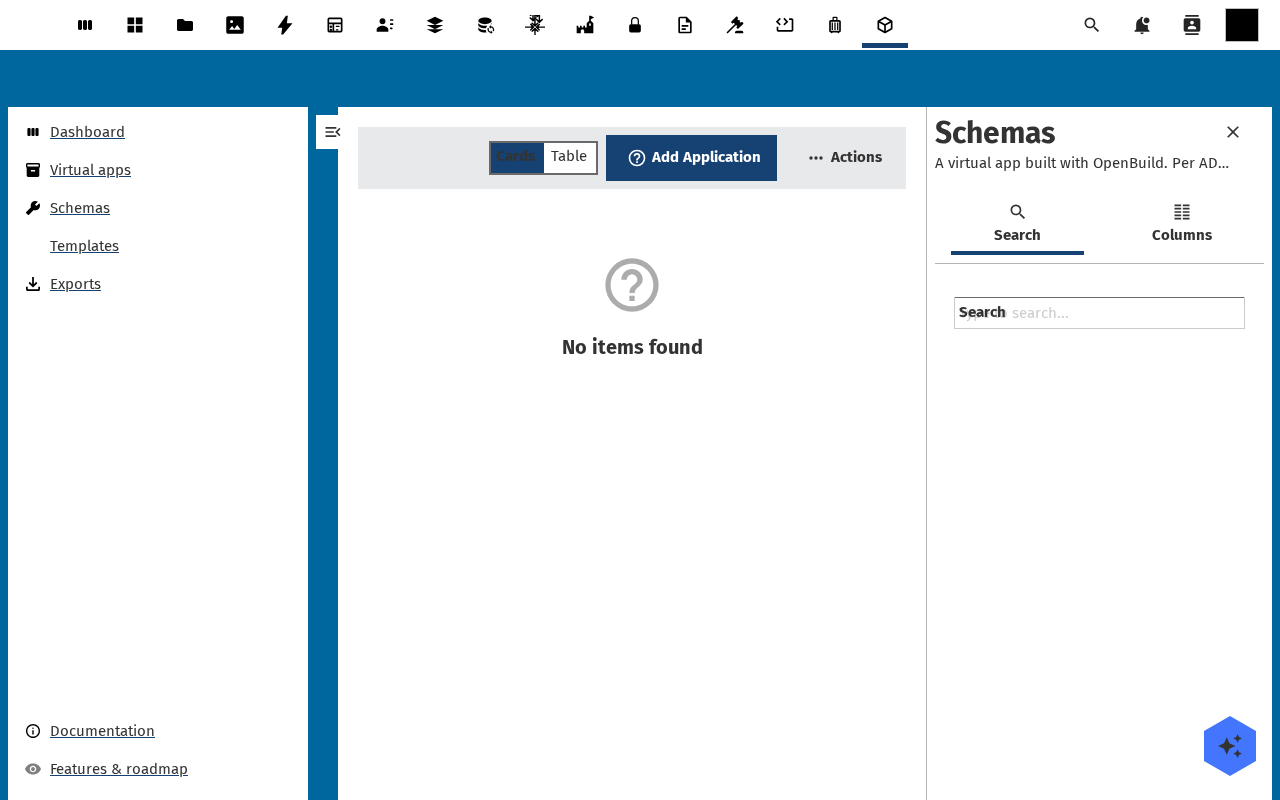
Click Add schema for a new one, or click a row to open an existing one. The add dialog asks for Schema slug, Title, Description and Version (semver). Each row in the list shows the title, the slug, the version, how many properties it has and how many lifecycle states.
-
The designer opens as one column of editors: the header fields first, then Fields, Lifecycle, Relations, Access, Widgets, Aggregations, Calculations and Notifications. The slug is locked once the schema exists. There is no JSON panel, you edit the schema through these editors.
-
Click Add field. Fill in the Name and pick a Type: string, number, integer, boolean, array, object or relation. Flip Required on if the field must always have a value. Each field also takes a Description, a Format such as
email,uriordate, a Pattern, a Min length and a Max length. Use the arrows to reorder fields.
-
To link records to another schema, go to Relations and click Add relation. Fill in the Relation name, pick the Target schema and pick the Cardinality, One or Many. Name the Inverse-of field if the other side points back.
-
Click Save. Buildiq writes the schema to OpenRegister and confirms with the version it saved. Undo, Redo and Discard staged edits sit beside the button while you work, so nothing lands until you save. The schema is usable in Design a page straight away.
Data scopes (row-level access)
Below the field, lifecycle and relation editors sits Access, where you scope who can read, create, update or delete records of this schema. OpenRegister enforces this on every request, so it is the real security boundary for the data, not a UI convenience.
For each of the four operations you pick exactly one scope kind:
- Everyone with app access, the default. No restriction beyond access to the app itself.
- Specific groups. Pick one or more Nextcloud groups. Only their members, plus admins, may perform the operation.
- Own records (creator) and Condition, a field-value match against the current user such as "assignee equals me". These are advanced scopes, offered only when the connected OpenRegister advertises support for them. If you do not see them, your OpenRegister does not support them yet, which is what most installs look like today.
Scope Read to a group you are not in, while you are not a Nextcloud admin, and the designer warns you that saving hides this schema's records from you. Saving stays allowed, because handing a schema to another team is a real thing to want.
Scopes are saved as part of the schema, exactly like fields. They are versioned per ?_version=, and a scope change on a draft version leaves the production version alone until you publish. On a production version, only an owner can change them, an editor cannot.
Access is not navigation. A page or menu entry's group setting only hides the entry. The Access editor here is what decides which records a user may read, create, update or delete, and OpenRegister enforces it server-side.
Verification
The schema is good when it appears in the list with the property count you expect. Save reports the version it wrote, and the field you added turns up in the page designer.
Common issues
| Symptom | Fix |
|---|---|
| "Name must be unique within the schema." | Two fields carry the same name. Rename one, or edit the one that already exists. |
| "Name must start with a letter and use letters, digits, underscores, or hyphens only." | Field names take no spaces, no leading digit and no other punctuation. |
| "A schema with this slug already exists in this app." | The slug is taken inside this app. Pick another, or open the existing schema. |
| "Exactly one lifecycle state must be marked as initial before you can save." | You declared lifecycle states but no starting point. Mark one state as the initial one. |
| The Target schema picker is empty | This app has only one schema. Add the schema you want to point at first, then come back. |
Reference
- Design a page to turn the schema into a screen.
- Connect external data to read the rows from somewhere else.