Open Buildiq for the first time
A first look at Buildiq. What the setup wizard asks you, what the dashboard counts, and what each navigation entry is for.
Goal
By the end you will have opened Buildiq and dealt with the setup wizard. You will know what the dashboard tiles count, what each navigation entry does, and what the Apps list gives you.
Prerequisites
- A Nextcloud account on an instance where the Buildiq app is installed and enabled.
- The OpenRegister app installed and enabled. Buildiq keeps apps, schemas, templates and versions in OpenRegister.
- Nextcloud admin rights if you want to run the setup wizard. Its endpoints are admin-only, so a regular account can read Buildiq but cannot seed it.
Steps
-
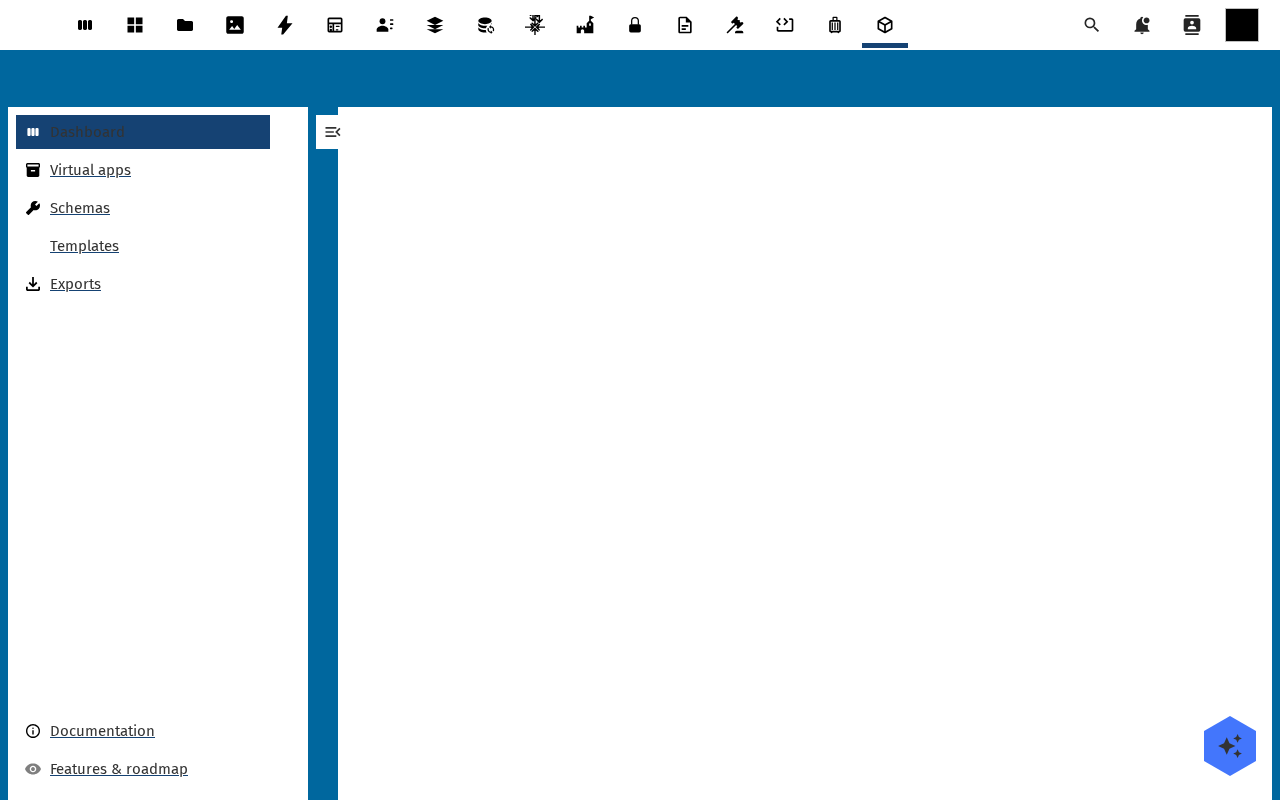
Open the Nextcloud app menu in the top bar and pick Buildiq. You land on the dashboard.
-
On a fresh install the setup wizard opens over the dashboard. Its title reads Set up buildiq. It walks six steps: a welcome, a choice of example data, the action that loads that data, Install starter templates, an optional remote template store, and a summary. Click Next through them, or Cancel and come back later. Every step is safe to run twice.
-
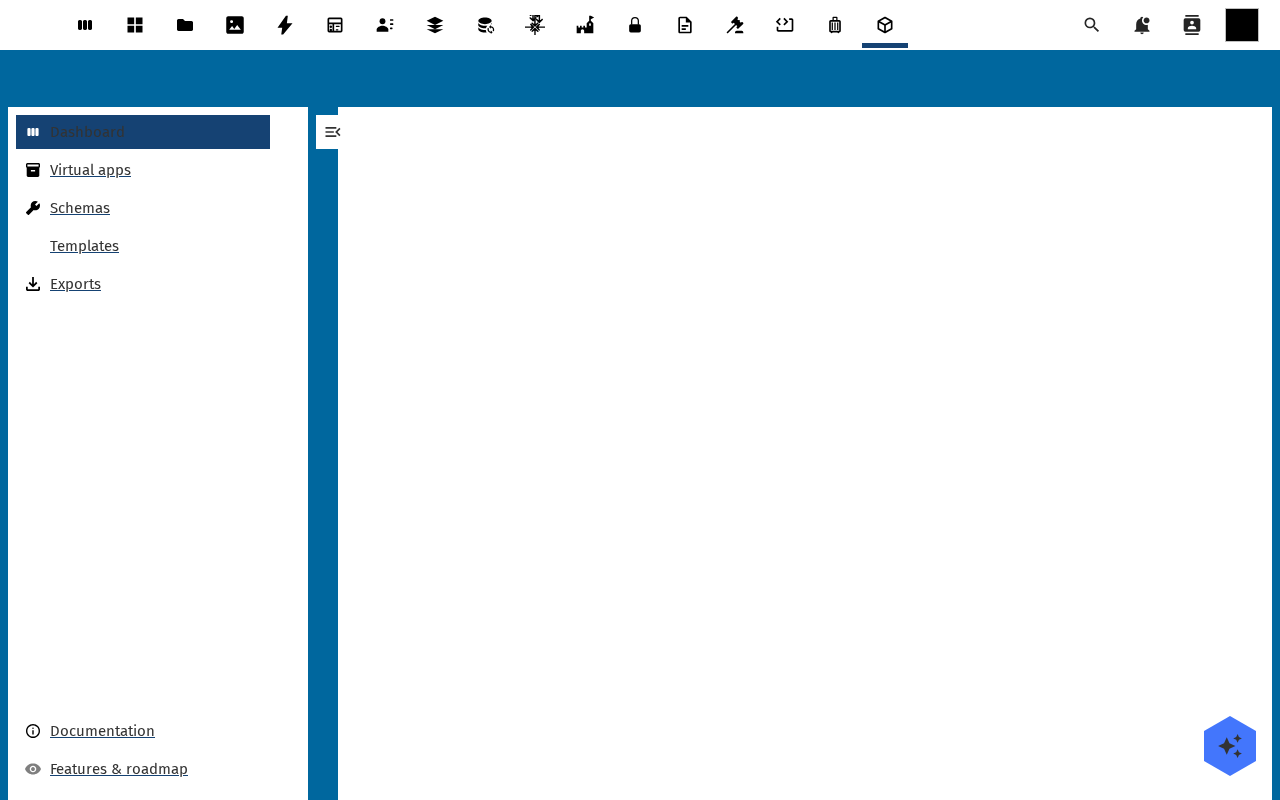
Read the dashboard tiles. Apps counts every app you have built. Hybrid apps counts the ones that layer over an installed Nextcloud app. Published versions counts what went to production. Below them, Recent apps lists name, type and slug, with an Edit action per row.
-
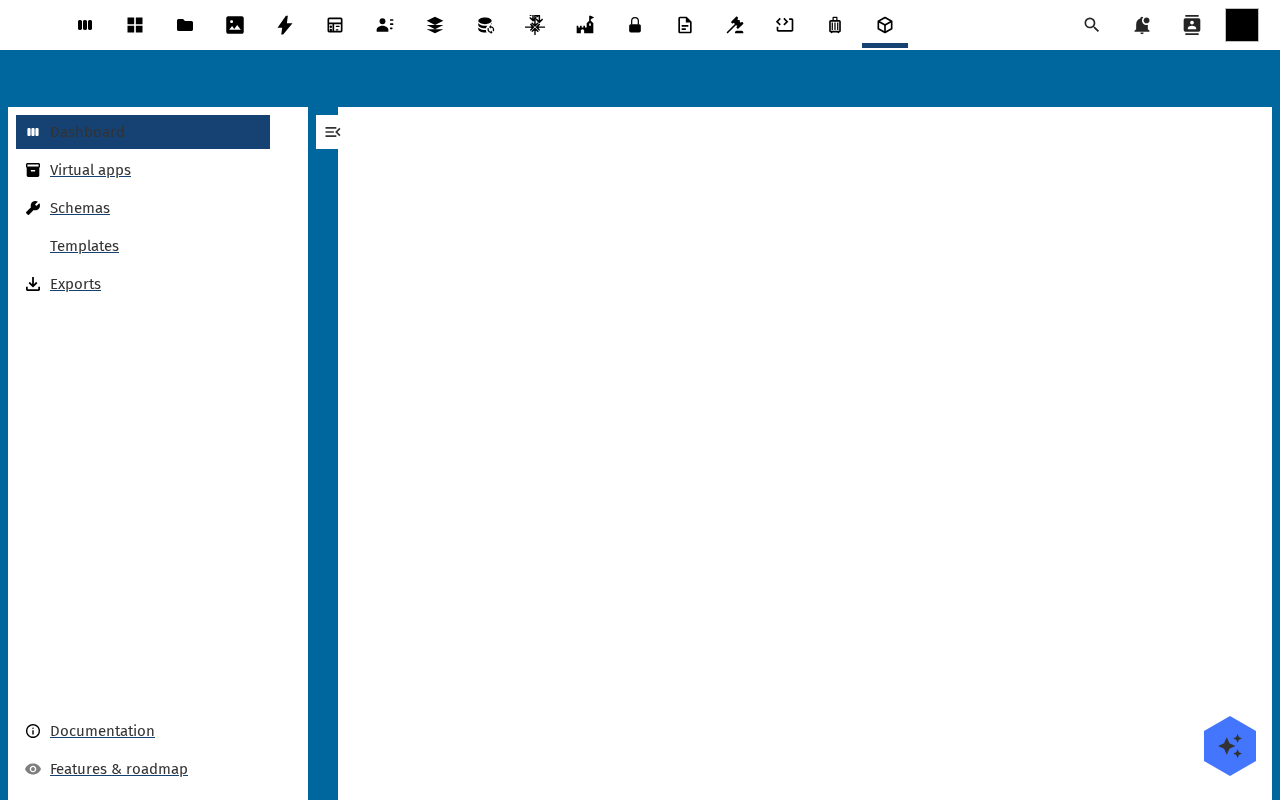
Open the left-hand navigation. Dashboard and Apps sit at the top. Below the divider sit Documentation, Store, Reports, Features & roadmap and a Settings button. Documentation leaves Nextcloud for buildiq.conduction.nl, and Store is the template gallery.
-
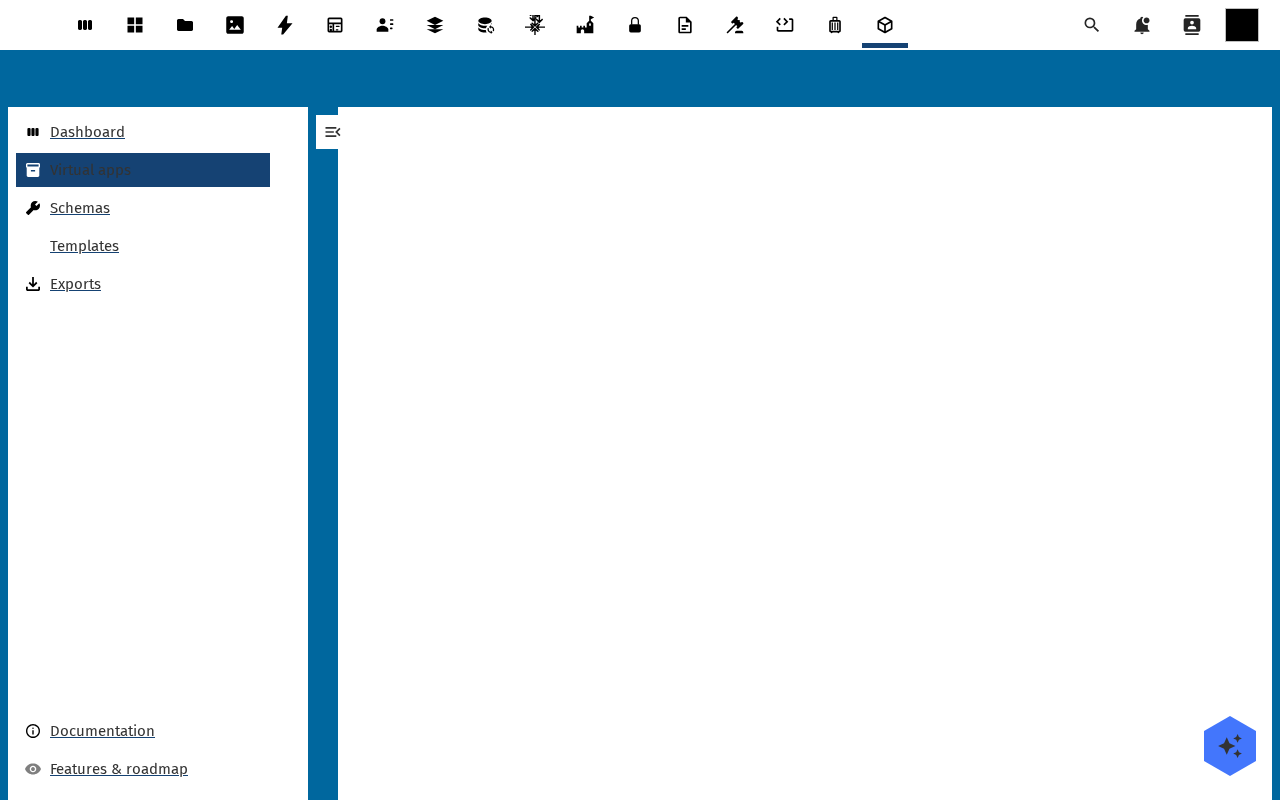
Click Apps. The list opens with a Cards and Table toggle and a type filter (All, Virtual, Hybrid). Beside them sit a Search and columns panel, an Add app button and a sidebar you open from the top right. Each card carries the app name, type, status, version and slug.
Verification
You are set up correctly when the dashboard renders its three tiles without an error. The navigation lists the entries above, and Apps opens on either your apps or an empty state.
Common issues
| Symptom | Fix |
|---|---|
| Buildiq is missing from the app menu | The app is not enabled for your account. Ask an administrator to enable it, and to check it is not restricted to a group you are not in. |
| "OpenRegister is not installed or enabled." | Install and enable the OpenRegister app, then reload Buildiq. Nothing in Buildiq stores anything without it. |
| The setup wizard refuses a step | The setup endpoints need Nextcloud admin rights. Ask an administrator to run the wizard once. |
| The Store shows no templates | The seed never ran. Open the setup wizard and run Install starter templates. |
| The Apps list is empty | Nothing has been built yet. Clone a template from the Store, or load the example data from the setup wizard. |
Reference
- Create an application from a template, the natural next step.
- Admin settings for the register, the version and the support contact.